

Using Stripo email template builder
Step 1 Go to the 'Email templates' menu from the left and click on 'Create new'. Step 2 Once loaded, click on the 'Show email builder' link in the top right corner of the WYSIWYG e...
Step 1
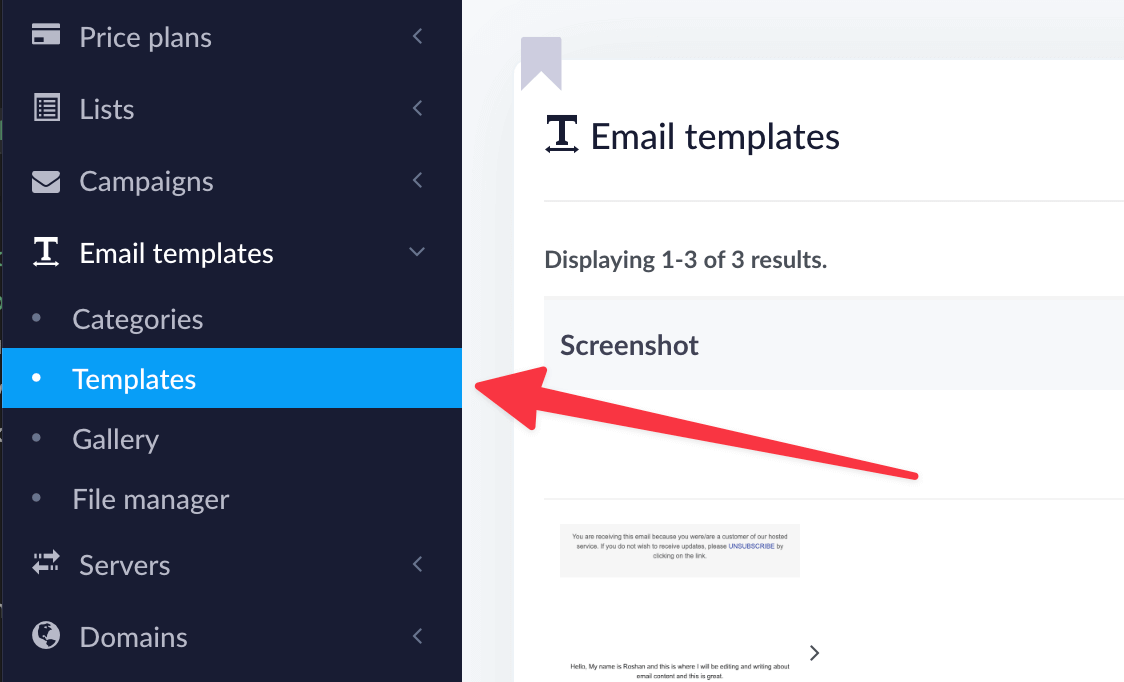
Go to the 'Email templates' menu from the left and click on 'Create new'.
Step 2
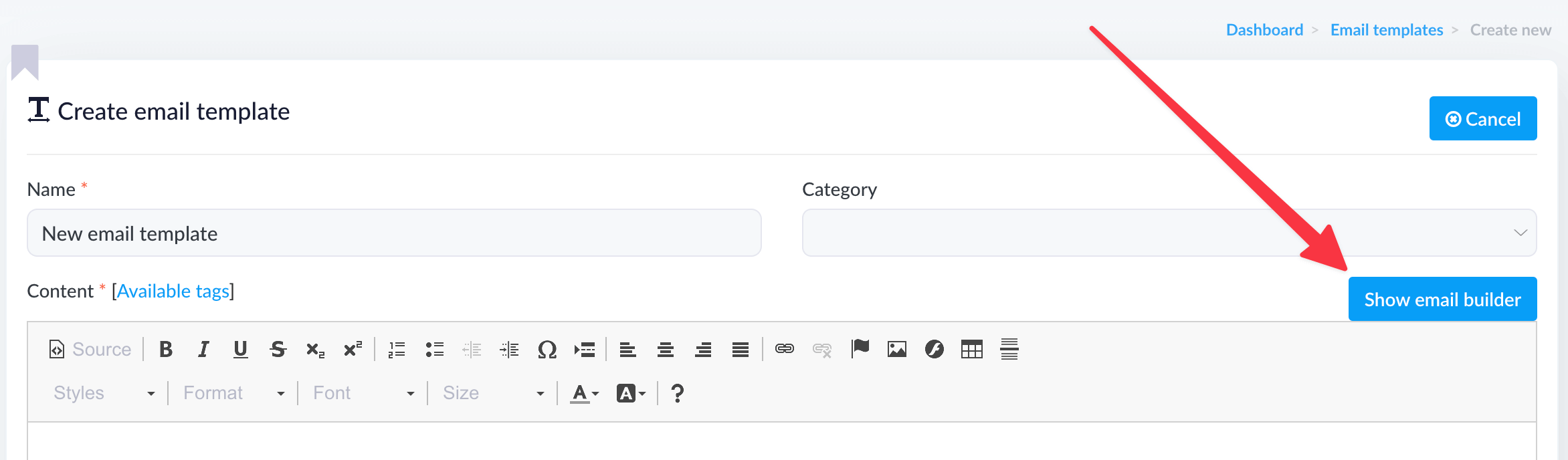
Once loaded, click on the 'Show email builder' link in the top right corner of the WYSIWYG editor.
Step 3
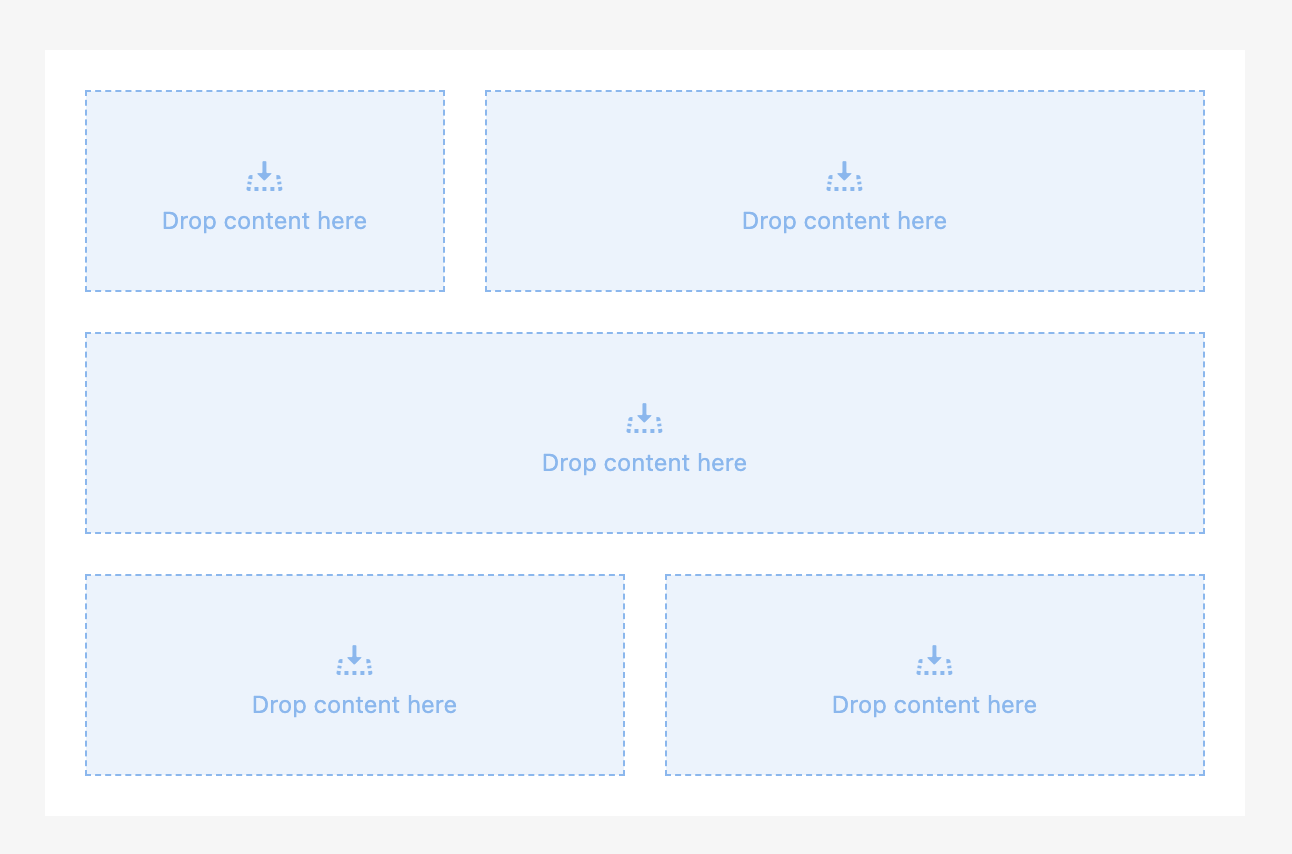
Start by dragging a structure from the 'Content' tab to place elements. You are now building the bare bones. Think of them as little boxes in which you will place your content. For example, you can do three structures — one column structure as the header, two-column for the body, and one column for the footer.
Step 4
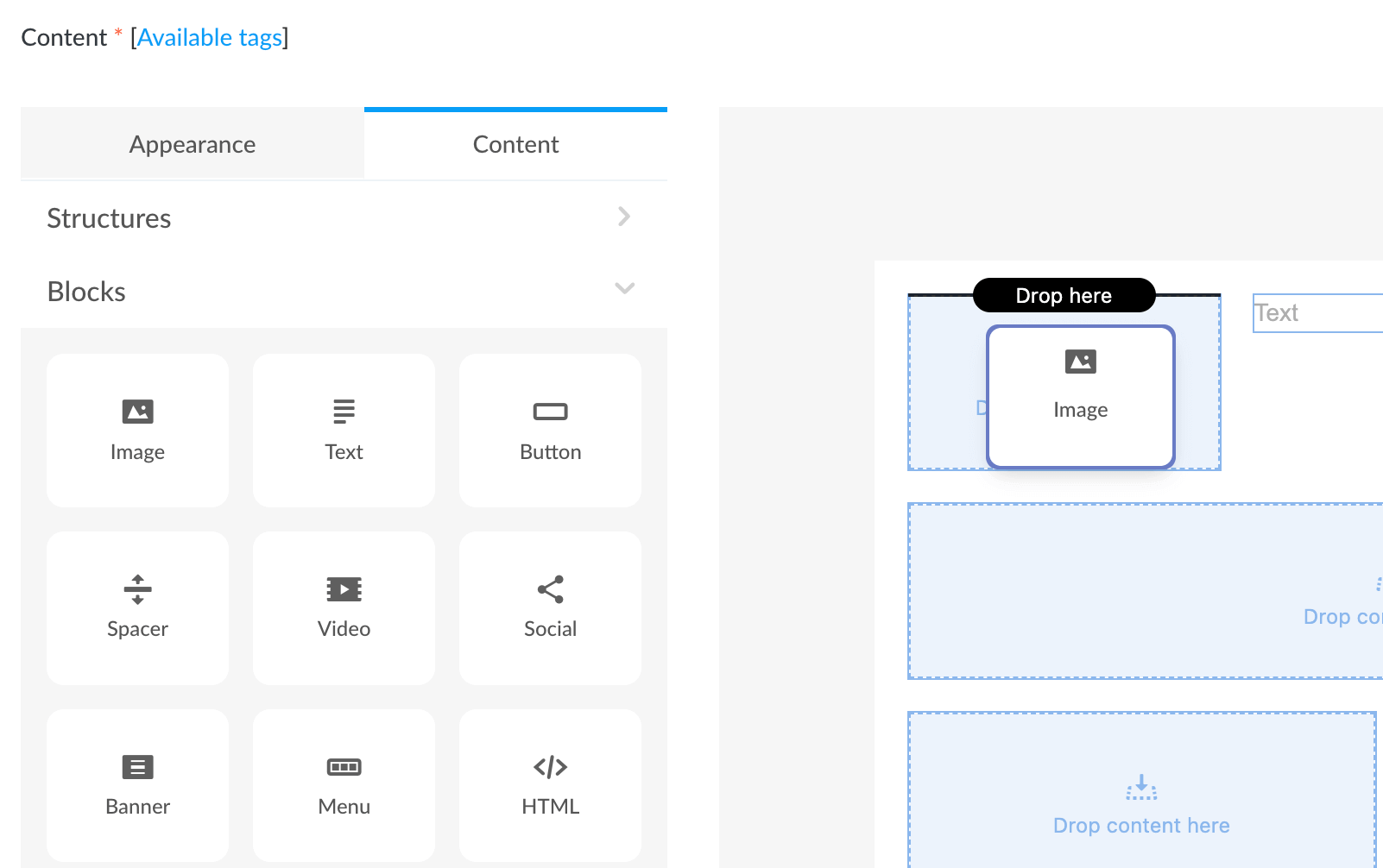
Now click on 'Blocks' in the same 'Content' tab and drag some text into these structures. Drag an image into the 'body' structure in the middle and another text element for your footer.
Step 5
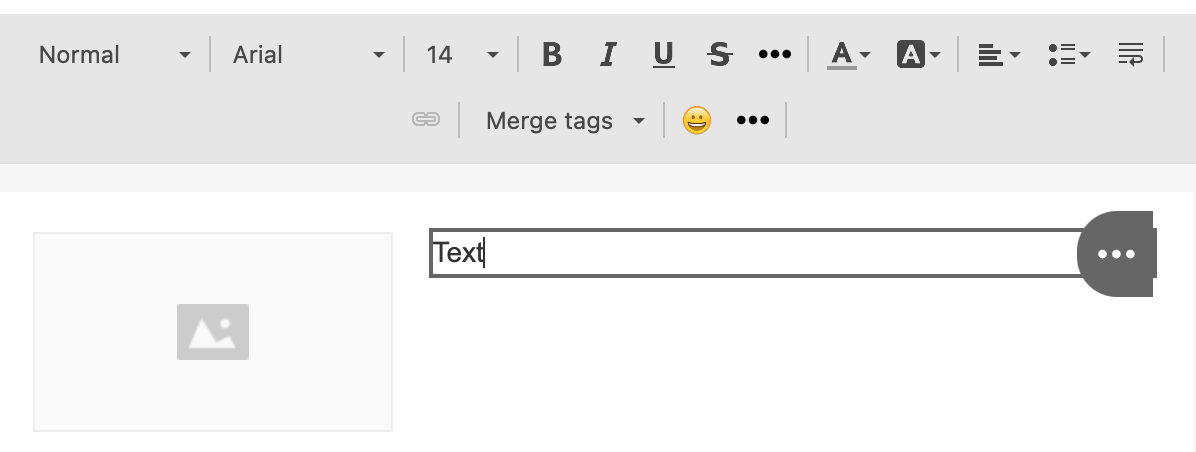
You can customise the font type, size, and colours using the top toolbar. Other options are also available.
Step 6
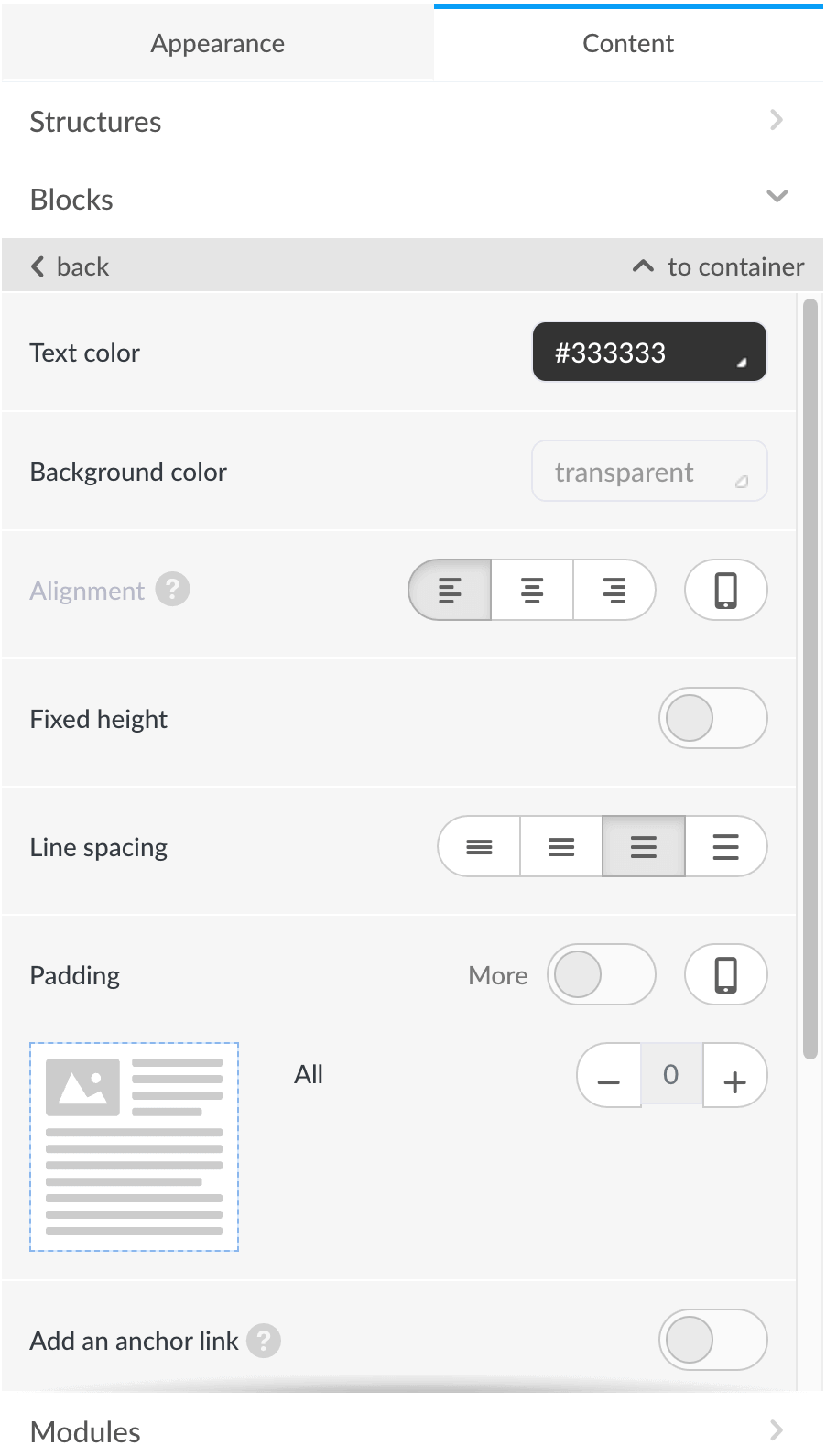
To further customise each of these 'Blocks', click on them, and relating options will appear to your left. Most options are self-explanatory (e.g., line spacing).
Step 7
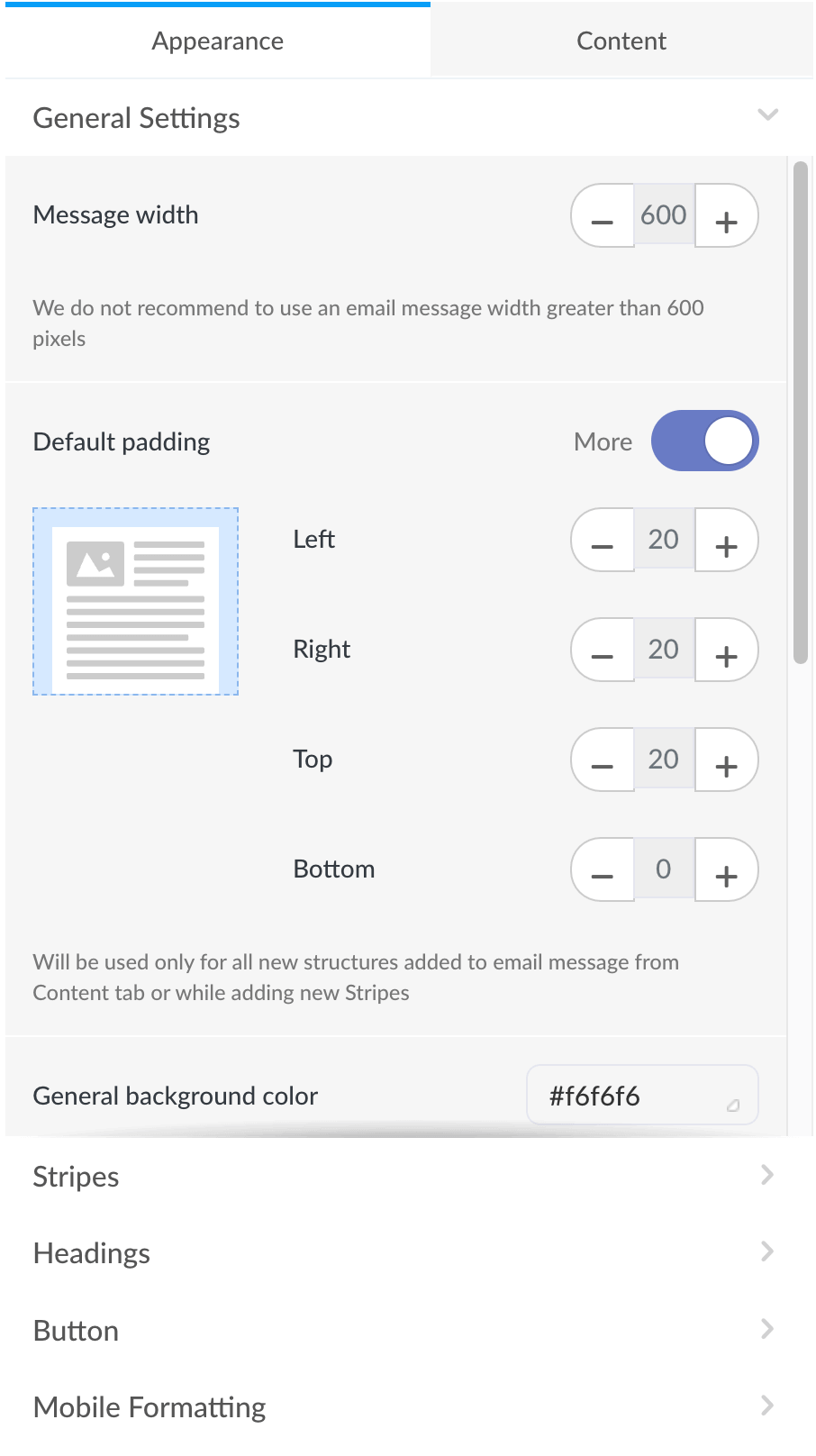
Finally, customise the global options for your template by switching to the 'Appearance' tab. From here, you can configure how comprehensive your email template should be, background colour, font, and other such options. You can also customise how it should look when viewing from a mobile phone.
Step 8
Click on the 'Save changes' button at the bottom right corner of the page to save your newly built email template.
Congratulations! You have built your fully responsive and very first email template, coded correctly in HTML, and are ready to be used for sending an email campaign. You can edit the text while sending a campaign or on the template page using the WYSIWYG editor options.
Note: Remember, the add-on template credit deducts the first time you save a template. You can continually update the same template as often as you like by clicking on the 'Update' button. You can also export the HTML source code and use it anywhere else.
Related articles
Domain Auth SPF, DKIM, DMARC, MX
Note: This guide only helps with email authentication for the emails (Eg. Email notifications) sent using OUR delivery server we configured for you. It DOES NOT apply if you are us...
Email campaigns paused - 'pending-sending'
You ran out of your monthly allowance We enforce limits from the backend. Our system automatically disables once your customers have used up their sending allowance. The counter ca...
Redis connection timeout error
Short answer: It occasionally occurs when we add or remove the number of compute capacity we need. Please refresh the page after a few seconds, and usually, the error disappears. H...